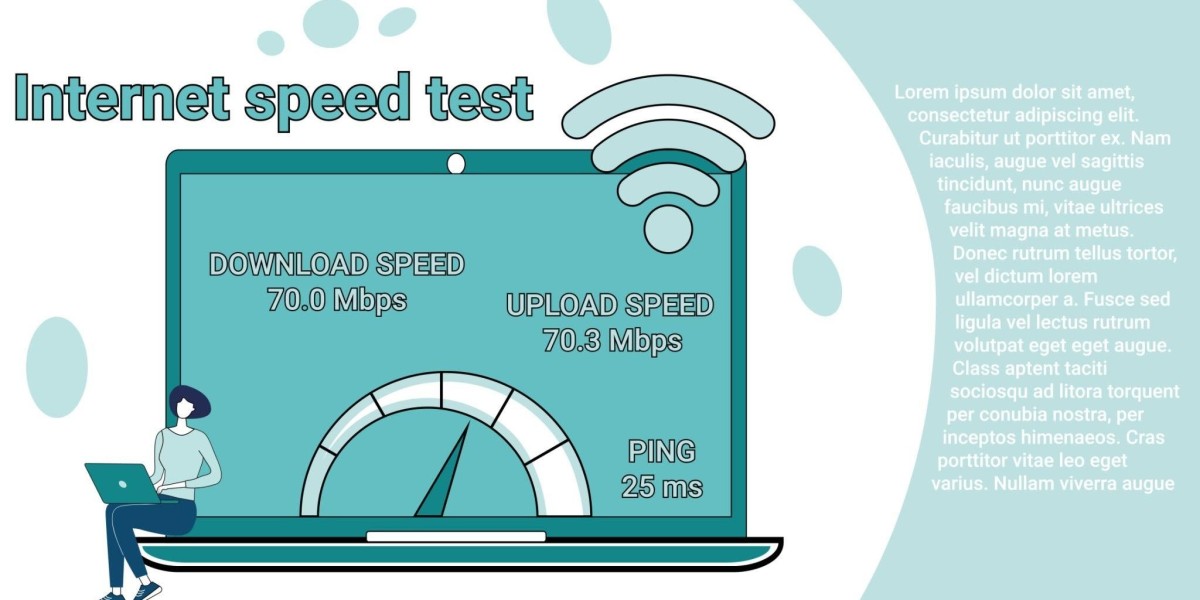


Few digital experiences are more frustrating than waiting for a simple webpage to load while your speed test claims you have blazing-fast gigabit internet. You run a diagnostic, watch the digital speedometer spike past 200 Mbps, yet clicking a link results in a spinning loading icon, stuttering images, or unresponsive scripts.
This disconnect between synthetic benchmark scores and real-world web performance is extremely common. High raw bandwidth does not automatically guarantee a snappy web browsing experience. Understanding why this happens requires looking beyond basic speed metrics to examine how data travels across the web.
The Fundamental Difference: Speed Tests vs. Web Browsing
To understand why your connection feels sluggish despite great test scores, you first need to understand what happens when you run an online speed diagnostic versus what happens when you load a web page.
How a Speed Test Measures Your Connection
When you visit a website for internet speed testing, the tool creates an idealized testing environment:
Direct Multi-Stream Transfer: It establishes multiple parallel TCP streams directly between your device and a nearby test server.
Proximity Optimization: The testing server selected is almost always geographically close to you, often hosted on or near your Internet Service Provider's (ISP) direct network core.
Unthrottled Data Blocks: The server sends large, uncompressed blocks of simple dummy data continuously to maximize throughput and calculate raw capacity.
In short, an internet speed tester measures maximum potential bandwidth under optimal laboratory conditions.
How Real-World Web Browsing Works
Loading a modern webpage is radically different from downloading a single continuous block of data:
Hundreds of Individual Requests: A single webpage requires your browser to fetch dozens—sometimes hundreds—of separate files from multiple servers around the world (HTML, CSS files, JavaScript bundles, images, custom fonts, third-party tracking scripts, and advertisements).
Sequential Dependencies: Your browser cannot render the full page until key files (like main style sheets and core scripts) are completely downloaded and parsed.
Geographic Spread: The server hosting the site you want to visit might be located thousands of miles away on a less optimized route.
5 Common Reasons Your Internet Feels Slow Despite High Speed Test Results
If your internetspeedtest results show peak performance but your browser is crawling, one of the following underlying bottlenecks is likely at play.
1. High Latency and Packet Delay (Ping vs. Throughput)
Bandwidth measures how much data your pipe can hold, but latency measures how fast a single packet of data makes a round trip from your device to the server and back.
Think of bandwidth as the width of a highway and latency as the speed limit. A 10-lane highway can hold thousands of cars, but if every car is forced to drive at 10 mph, it still takes a long time to reach your destination.
When you launch an online test to check my internet speed, it picks a local server with 5 ms to 15 ms latency. However, when you browse:
Browsing requires hundreds of tiny request-and-response round trips.
If the remote web server has high latency (e.g., 150 ms or higher), every single file request incurs that delay.
Cumulative latency causes pages to pause before they start rendering, making the site feel sluggish even on a fast pipe.
2. Slow DNS Lookup Times
Before your computer can connect to any website, it must translate the domain name (like example.com) into an IP address (like 192.0.2.1). This translation process is handled by a Domain Name System (DNS) server.
If your ISP’s default DNS server is slow or overloaded:
Every new domain your browser contacts suffers a lookup delay of 100 ms to 1000 ms before downloading even begins.
Because modern websites pull assets from 10 to 20 different third-party domains (analytics, content delivery networks, ad networks), DNS delays compound rapidly.
A speed test bypasses repeated DNS lookup overhead because it maintains a single continuous connection to one pre-resolved server.
How latency and bandwidth impact data transfer. Source: SergeyVasutin / Getty Images
3. Server-Side Bottlenecks at the Destination
Your home connection is only half of the journey. The destination server hosting the website must also process your request and transmit data back to you.
If the target website is experiencing heavy traffic, running inefficient code, or hosted on undersized cloud infrastructure, the bottleneck is on their end, not yours. Your 500 Mbps connection cannot force a struggling web server to output data any faster than its current limit (which might only be 2 Mbps per user).
4. Browser Overhead and Extension Bloat
Sometimes the issue isn't your internet connection at all, but the application rendering it. Modern web browsers require substantial CPU and memory resources to execute JavaScript, render complex layouts, and manage background extensions.
Common browser-related causes for slow page loads include:
Too Many Extensions: Ad blockers, privacy tools, and price trackers inspect every single network packet and script before allowing it to run, adding noticeable processing overhead.
Corrupted Browser Cache: An overcrowded or corrupted cache can cause the browser to freeze or re-request files repeatedly.
Hardware Acceleration Conflicts: Outdated graphics drivers can cause browser rendering lags that look like network slowness.
5. ISP Traffic Management and Route Throttling
Internet service providers frequently utilize Quality of Service (QoS) rules and traffic shaping.
Some ISPs prioritize benchmark traffic (identifying when you visit a popular website for internet speed checks) to ensure their advertised speeds look accurate. However, they may deprioritize or route standard HTTP/HTTPS browsing traffic through congested transit nodes during peak hours.
How to Diagnose and Fix Slow Browsing Speed
To resolve the discrepancy between your speed test scores and real-world browsing performance, follow this systematic troubleshooting checklist.
Bottleneck Area | Diagnostic Step | Recommended Fix |
DNS Lookup | Ping your current DNS server vs. public DNS options. | Switch router or device DNS to Cloudflare (1.1.1.1) or Google (8.8.8.8). |
Browser Overhead | Open an Incognito / Private window with all extensions disabled. | Remove unnecessary extensions and clear browser cache and cookies. |
Wi-Fi Latency | Compare Wi-Fi results against a wired Ethernet connection. | Move closer to the router, switch to the 5 GHz/6 GHz band, or use Ethernet. |
Background Network Usage | Check task manager for cloud sync tools, updates, or torrents. | Pause background downloads, OS updates, and automatic cloud backups. |
ISP Routing / Throttling | Test site responsiveness with and without a reliable VPN. | If performance improves on a VPN, contact your ISP regarding poor routing. |
Step-by-Step Fixes to Restore Browsing Speed
Change Your DNS Servers: Switching from your ISP's default DNS to a high-speed public DNS resolver (such as Cloudflare 1.1.1.1 or Google 8.8.8.8) eliminates translation delays and dramatically speeds up page initiation times.
Flush Your DNS Cache: On Windows, open Command Prompt and run ipconfig /flushdns. On macOS, run sudo dscacheutil -flushcache; sudo killall -HUP mDNSResponder in Terminal.
Test in Incognito Mode: Opening a clean private window bypasses browser extensions and cached data. If browsing feels significantly faster in Incognito, an extension or browser cache issue is the root cause.
Use Multi-Server Diagnostics: Rather than relying on a single tool, run tests across multiple server locations and diagnostic platforms to get a clearer picture of your connection's true response times and packet loss.
While internet speed testers provide a useful baseline for raw line capacity, overall web responsiveness relies equally on low latency, fast DNS resolution, clean browser environment, and remote server capacity. Addressing these hidden factors will ensure your real-world browsing matches the high speeds promised on your diagnostic screen.









