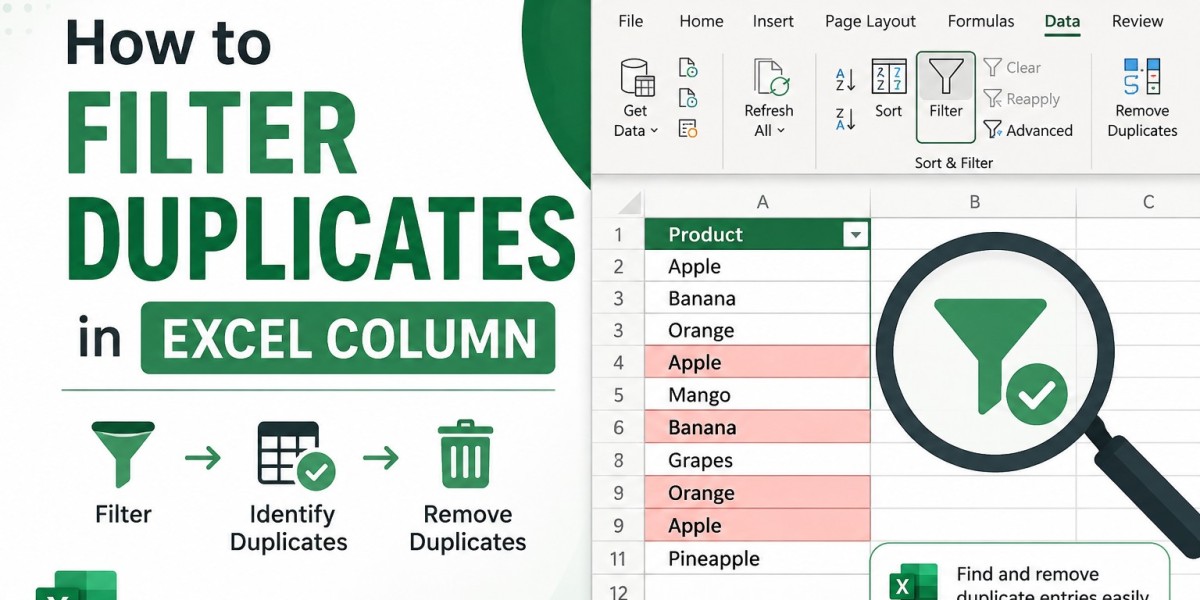


Duplicate values in an Excel column can make data analysis difficult and lead to inaccurate results. Whether you are working with customer names, email addresses, product IDs, or any other dataset, knowing how to filter duplicates in Excel column can help you quickly review and clean duplicate data in Excel.
Excel offers several built-in options for finding, filtering, and handling repeated values. This guide explains the most practical methods, along with an automated solution for handling duplicate data in larger Excel files.
What Does Filtering Duplicates in an Excel Column Mean?
Filtering duplicates means isolating repeated values in a dataset so you can review or handle them appropriately. Depending on your requirement, you may want to:
View only duplicate values.
Highlight repeated entries.
Filter unique values.
Keep one copy of each value.
Clean duplicate records from a large spreadsheet.
How to Filter Duplicates in Excel Column Using Conditional Formatting?
Conditional Formatting is one of the easiest methods to visually identify duplicate values in a column.
Steps to Highlight Duplicate Values
Select the column containing your data.
Go to the Home tab.
Click Conditional Formatting.
Select Highlight Cells Rules.
Choose Duplicate Values.
Select a formatting style.
Click OK.
Excel will immediately highlight all repeated values in the selected column.
Once the duplicates are highlighted, you can use Excel's filtering options to display the highlighted cells separately.
Limitation
Conditional Formatting only highlights duplicates. It does not directly organize or filter the duplicate records into a separate list.
Use Excel's Advanced Filter to Display Unique Records
Another approach to how to filter duplicates in Excel column is using the Advanced Filter feature. This option is particularly useful when you want to display only unique values.
Steps to Apply Advanced Filter:
Select the column or dataset.
Go to the Data tab.
Click Advanced in the Sort & Filter section.
Choose whether you want to filter the list in place or copy the results to another location.
Select Unique records only.
Click OK.
Excel will display only the unique records based on your selected range.
How to Eliminate Duplicates in Excel Column Manually?
Excel also includes a dedicated Remove Duplicates feature. This method can be useful when you no longer need multiple copies of the same value.
Follow These Steps:
Select the column containing duplicate entries.
Navigate to the Data tab.
Click Remove Duplicates.
Ensure the correct column is selected.
Check the My data has headers option if applicable.
Click OK.
Excel will process the selected data and retain one occurrence of each repeated value.
Before using this option, consider creating a backup of your worksheet. Once the data has been changed and the workbook is saved, recovering the original structure may be difficult.
How to Take Out Duplicates in Excel Column Using the UNIQUE Function?
Users with newer versions of Excel can use the UNIQUE function to create a separate list containing distinct values.
For example:
=UNIQUE(A2:A100)
The formula creates a new list containing unique values from the selected range.
This is helpful when you want to preserve the original column while generating a separate list for analysis.
Use Automated Approach for Large or Complex Excel Files
Manual methods work well for simple spreadsheets, but they can become time-consuming when dealing with large Excel files or issues like Excel remove duplicates greyed out across multiple worksheets.
In such situations, the SysTools Excel Duplicate Remover Tool can be considered as an automated solution. The tool is designed to help users locate and process duplicate data in Excel workbooks without manually checking every record.
It can be particularly useful when working with:
Large Excel datasets
Multiple worksheets
Repeated records across extensive data ranges
Complex spreadsheets that require a more structured duplicate-cleaning process
Before processing important files, it is always advisable to maintain a backup copy and review the available options to ensure they match your specific requirements.
Conclusion
Learning how to filter duplicates in Excel column gives you better control over your spreadsheet data. You can use Conditional Formatting for visual identification, Advanced Filter for unique values, formulas for detailed analysis, or Excel's built-in features to clean repeated entries.
The right method depends on the size and complexity of your dataset. For larger or more complicated workbooks, an automated solution mentioned above can help you to reduce the manual effort involved in processing and removing duplicate records.









