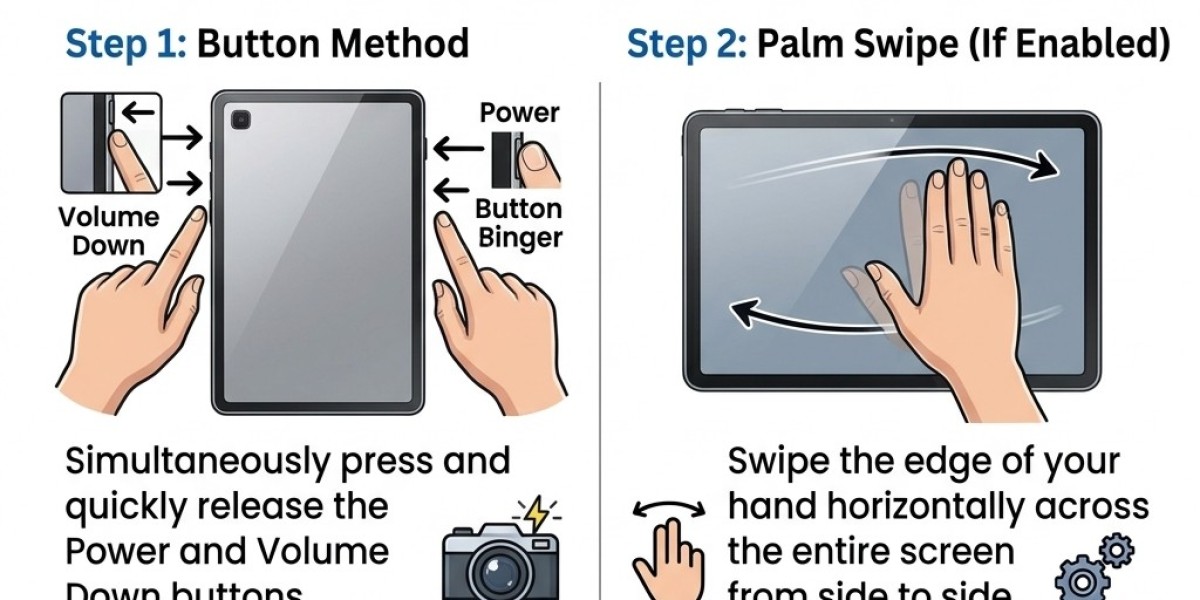


Taking a screenshot on a Samsung tablet is a simple way to save important information, capture memorable moments, or share something displayed on your screen. Whether you use a Galaxy Tab S series, Galaxy Tab A series, or another compatible model, learning how to screenshot on samsung tablet can make everyday tasks more convenient. Samsung offers several screenshot methods, allowing users to choose whichever option works best for their device and preferences.
1. Take a Screenshot Using Physical Buttons
The quickest way to capture your screen is by using your tablet's physical buttons.
Steps to Follow
Open the screen you want to capture.
Press the Power button and Volume Down button simultaneously.
Release both buttons quickly.
Wait for the screen to flash, indicating that the screenshot has been captured.
Your screenshot will generally appear in the Gallery app under the Screenshots album. Avoid holding the buttons for too long, as this may activate other functions.
2. Use Palm Swipe to Capture Screenshots
Samsung offers a convenient gesture feature on many Galaxy tablets called Palm swipe to capture. This method lets you take screenshots without pressing physical buttons.
To enable this feature, open Settings and navigate to Advanced features, followed by Motions and gestures. If your model supports it, activate Palm swipe to capture.
Once enabled, swipe the edge of your hand horizontally across the screen, keeping your hand in contact with the display. Your tablet should capture the current screen automatically.
If you cannot find this option, your device's model or software version may not support the gesture.
3. Take Screenshots Using the S Pen
For compatible Samsung Galaxy tablets with an S Pen, screen capture is also possible through dedicated pen features.
Using Screen Write
Remove the S Pen and open the Air command menu. Select Screen write, if available, to capture the current screen. You can then write notes, highlight information, crop the image, and save the result.
This option is particularly useful for students, professionals, and anyone who needs to annotate screenshots.
4. Where to Find Your Screenshots
After learning how to screenshot on samsung tablet, knowing where your images are saved is equally important.
Open the Gallery app and look for the Screenshots album. Alternatively, open My Files and navigate to Internal storage, Pictures, and Screenshots. Folder locations may vary slightly between software versions.
Conclusion
Understanding how to screenshot on samsung tablet helps you capture and share information quickly. You can use physical buttons, palm swipe gestures, or the S Pen, depending on your tablet's supported features. Choose the method that feels most comfortable, and remember to check your Gallery whenever you need to access saved screenshots.