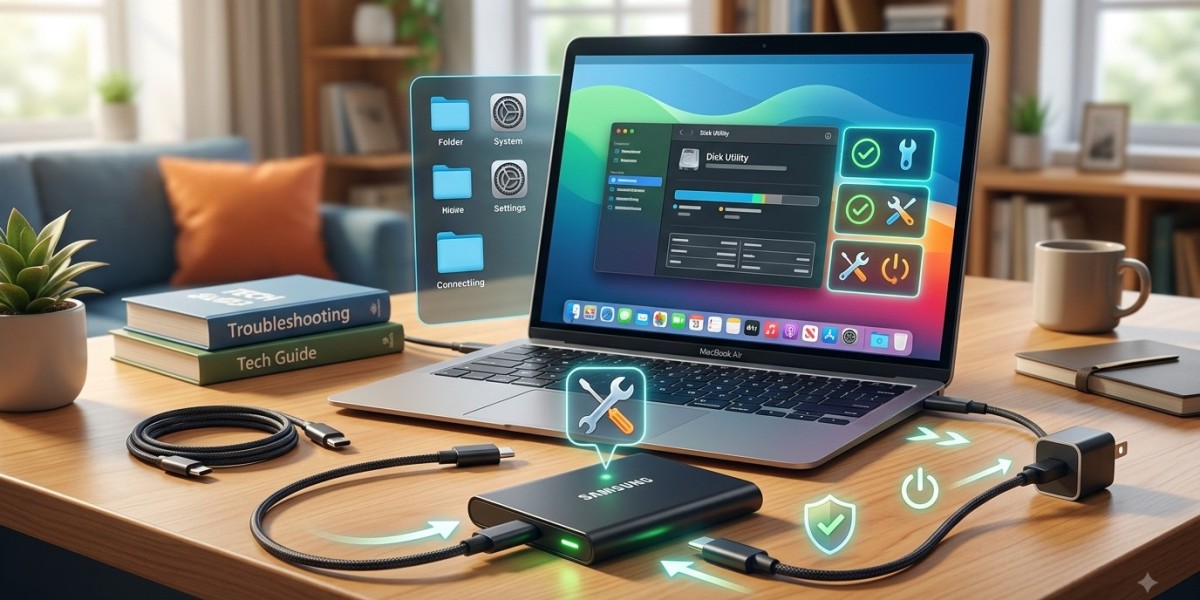


External hard drives are one of the most convenient ways to store, transfer, and back up important files. Whether you use an external drive for work documents, family photos, videos, business records, or system backups, having quick access to your data is essential. However, like any piece of technology, external hard drives can develop problems over time.
You may encounter issues such as a drive not being recognized, slow transfer speeds, unusual noises, file corruption, or connection failures. While some problems can be resolved with simple troubleshooting, others may require professional assistance to prevent permanent data loss. Understanding the most common external hard drive issues can help you respond appropriately and protect your valuable information. If you need expert help, professional computer repair Albany, laptop repair Albany, and computer repair Albany NY services can diagnose and repair storage-related problems safely.
Why External Hard Drives Experience Problems
External hard drives are exposed to several risks that internal drives may not face. They are frequently transported, connected to different computers, and often experience accidental drops or cable stress.
Common causes of external hard drive problems include:
- Damaged USB cables
- Faulty USB ports
- Physical impact or drops
- Power supply issues
- File system corruption
- Overheating
- Malware infections
- Driver problems
- Aging hardware
- Improper disconnection
Identifying the root cause is important before attempting any repair.
Problem 1: External Hard Drive Is Not Recognized
One of the most common complaints is that the external drive simply does not appear when connected.
Before assuming the drive has failed, try these basic troubleshooting steps:
Check the USB Cable
A damaged cable can prevent proper communication between the drive and the computer.
Try:
- Using a different USB cable
- Inspecting connectors for damage
- Testing the cable with another device
Sometimes replacing the cable completely solves the issue.
Try Another USB Port
Faulty USB ports can cause connection problems.
Connect the drive to a different USB port on the same computer. If possible, test both front and rear ports on desktop systems.
If the drive works in another port, the original port may require attention.
Test the Drive on Another Computer
Connecting the drive to another computer helps determine whether the problem is with the drive or the original system.
If the drive works elsewhere, the issue may involve drivers, settings, or USB hardware on the first computer.
Problem 2: Slow File Transfer Speeds
Slow transfers can make backups and file management frustrating.
Several factors can reduce performance:
- Aging hard drives
- Nearly full storage
- Background software
- USB connection limitations
- Drive fragmentation
- Hardware degradation
Check Available Storage Space
Drives that are nearly full often experience slower performance.
Delete unnecessary files or move data to another storage device if appropriate.
Use the Correct USB Port
Modern external drives perform best when connected to high-speed USB ports supported by both the computer and the drive.
Connecting a high-speed drive to an older port may limit performance significantly.
Close Unnecessary Programs
Applications running in the background may consume system resources and reduce transfer performance.
Close unnecessary programs before transferring large amounts of data.
Problem 3: Drive Disconnects Randomly
If your external drive repeatedly disconnects, the problem may involve:
- Loose connections
- Faulty cables
- Power issues
- USB port problems
- Hardware failure
Inspect the Connection
Make sure all connectors fit securely.
A loose cable can interrupt communication and cause repeated disconnections.
Avoid Moving the Drive During Use
Moving a drive while it is operating can create connection interruptions and potentially damage internal components.
Place the drive on a stable surface while transferring files.
Check Power Requirements
Some external drives require more power than a single USB connection can provide.
If the drive has an external power adapter, ensure it is connected properly.
Problem 4: Files Are Missing or Corrupted
Discovering missing or damaged files can be alarming.
File corruption may result from:
- Improper drive removal
- Sudden power loss
- Malware
- Software errors
- Failing storage hardware
Stop Using the Drive Immediately
If important files are missing, avoid writing new data to the drive.
Continuing to use the drive may overwrite recoverable information.
Check Backup Copies
Always verify whether a recent backup exists before attempting recovery.
Having multiple backups can significantly reduce the impact of storage failures.
Run Appropriate Diagnostics
Storage diagnostics may help identify file system errors or drive health issues.
However, if the drive contains critical data, professional evaluation is often safer than experimenting with multiple repair tools.
Problem 5: Unusual Clicking or Grinding Noises
Mechanical hard drives contain moving parts. Clicking, grinding, or repeated spinning noises can indicate a serious hardware problem.
Common warning signs include:
- Repetitive clicking
- Grinding sounds
- Failure to spin properly
- Sudden drive disappearance
- Extremely slow access
Stop Using the Drive
If the drive is making unusual mechanical sounds, discontinue use immediately.
Continuing to operate a physically failing drive can increase the risk of permanent data loss.
Seek Professional Assistance
Mechanical failures often require specialized recovery procedures. Professional technicians can determine whether the drive can be repaired or if data recovery services are necessary.
Problem 6: The Drive Overheats
External drives generate heat during operation, but excessive temperatures can damage components and reduce reliability.
Causes of overheating include:
- Poor ventilation
- Extended usage
- High ambient temperatures
- Internal hardware problems
Improve Airflow
Place the drive in a well-ventilated area.
Avoid stacking objects on top of the drive or placing it inside enclosed spaces while operating.
Give the Drive Time to Cool
For large backups or file transfers, occasional cooling periods can help reduce stress on the hardware.
Problem 7: Driver or Software Issues
Sometimes the drive itself works properly, but the operating system cannot communicate with it correctly.
Possible causes include:
- Outdated drivers
- Operating system conflicts
- Missing updates
- Software corruption
Update Drivers
Ensure your operating system and storage-related drivers are up to date.
Using manufacturer-recommended drivers can improve compatibility and reliability.
Check for System Updates
Operating system updates may contain fixes for storage and USB-related issues.
Keeping software updated helps reduce compatibility problems.
How to Prevent External Hard Drive Problems
Preventive maintenance can significantly extend the life of an external drive.
Handle the Drive Carefully
Avoid dropping, bumping, or moving the drive while it is operating.
Use Proper Ejection Procedures
Always disconnect the drive using the operating system's safe removal feature when available.
Keep Multiple Backups
No storage device lasts forever.
Maintain backups in multiple locations whenever possible.
Protect Against Malware
Use updated security software and avoid connecting drives to untrusted systems.
Store the Drive Properly
Keep the drive away from excessive heat, moisture, dust, and direct sunlight.
When to Contact a Professional
While some external hard drive issues can be solved through simple troubleshooting, others require professional attention.
You should seek assistance if:
- The drive makes unusual noises
- Important files are inaccessible
- The drive repeatedly disconnects
- Data recovery is needed
- Physical damage has occurred
- The drive is not recognized after basic troubleshooting
Professional computer repair Albany technicians can evaluate the drive, test its health, and determine whether repair or recovery services are necessary.
For portable systems, laptop repair Albany specialists can also inspect USB ports, power delivery systems, and software settings that may contribute to connection problems.
If you're looking for dependable computer repair Albany NY, experienced technicians can help diagnose storage issues while minimizing the risk of further data loss.
Conclusion
External hard drives are valuable tools for storing and protecting important data, but they can experience problems ranging from connection failures and slow performance to file corruption and mechanical damage. Understanding the warning signs allows you to act quickly before a minor issue becomes a major problem.
Simple steps such as checking cables, testing different USB ports, updating drivers, and maintaining backups can solve many common issues. However, unusual noises, repeated disconnections, and inaccessible files often require professional attention.
If your external hard drive is showing signs of failure, trusted computer repair Albany, expert laptop repair Albany, and reliable computer repair Albany NY services can help diagnose the problem, protect your data, and recommend the best solution. Taking action early can often prevent costly repairs and improve the chances of successful data recovery.